





This section describes how events are forwarded to an external event processing application, such as an incident manager like HPE Service Manager or BMC Remedy Service Desk, and how forwarded events and subsequent event changes are synchronized back from the external application.
Synchronizing events and event changes between applications depends on:
- Forwarding events and subsequent changes to an external event process
- Synchronizing event changes back from an external process
Learn more
 Forward events and event changes to an external event process
The following graphic shows an overview of the event forwarding architecture, and the various routes that the forwarded event can take to reach the incident manager.
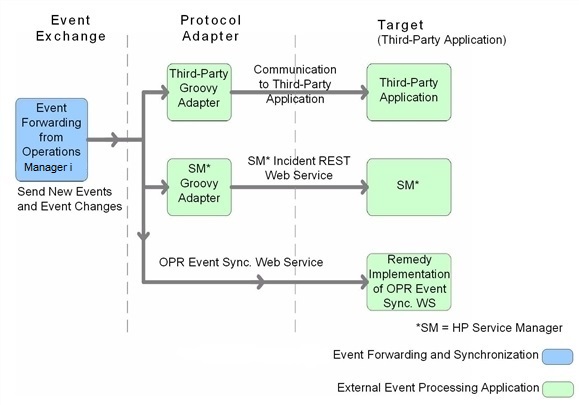
The target servers that are to receive the forwarded events and subsequent event changes must be configured using the Connected Servers manager. You can also configure which events to forward based upon a filter, and which connected server to forward the events to. You can configure filters in the Event Forwarding manager.
For details about how to configure connected servers and forwarding rules, see OMi Help.
Events matching the filter are pushed to the target connected server, together with any subsequent changes to the event. The following forwarding modes are supported:
- Notify — Target server receives original events but no further updates
- Notify and Update — Target server receives original events and all further updates
- Synchronize — Target server receives original events and all further updates and sends back all updates
-
Synchronize and Transfer Control — Target server receives original events and updates and sends back all updates. Ownership of the event is transferred to the other server. Only OMi users with special permission are allowed to close the event after control is transferred, for example, an Administrator.
This option is available only if Enable synchronize and transfer control is enabled on the selected connected server. An operator may manually transfer control via the context menu of the Event Browser.
Delivery of forwarded events and subsequent event changes is guaranteed. If the target connected server is down when the event is forwarded or changes occur, the request is queued and delivered when the target connected server becomes available again.
You can integrate an external event process using the following ways:
Using a Groovy script adapter
You can write and modify Groovy scripts so that you can customize out-of-the-box adapters, and create new adapters. For more information about developing and deploying Groovy scripts, see Groovy scripts.
The following Groovy script adapters are provided out-of-the-box:
- Service Manager Adapter
- Sample Logfile Adapter (see Sample Groovy Script: Logfile Adapter)
If a Groovy script is configured for the connected server, then a call is made to the Groovy script to forward matching events, and subsequent changes to those events, to the target connected server. The script is so designed that it uses the API that is best suited to deliver the event and event changes to the target connected server. For example, Groovy scripts used for the Service Manager Adapter use the Apache Wink REST client API to execute REST web service calls to HPE Service Manager.
For more details about how to use Groovy scripts for integrations, see Integrate external event processes using Groovy scripts.
Using the Event Synchronization Web Service
Instead of implementing a Groovy script, an integrator may implement an Event Synchronization Web Service endpoint to receive event forwarding requests and subsequent updates directly from OMi. If the connected server is configured in OMi to call an event REST web service rather than a Groovy script, then it is also expected that an OPR Event-compliant REST web service is implemented by the target server and available at the connected server endpoint.
To forward events and their subsequent changes, the following standard REST web service HTTP method calls are made by OMi:
-
POST. A POST call forwards an event with the payload of an OPR event (the payload is the body of the request). The base URL configured for the target connected server, appended with the
/eventparameter, is used to address the endpoint. The new event created is expected in the response payload. -
POST. A POST call forwards a list of events with the payload of an OPR event list. The base URL configured for the target connected server, appended with the
/eventparameter is used to address the endpoint. This endpoint is optional. If provided, the user may select Supports Bulk Transfer in the Connected Servers configuration. Each event in the list has a uniquesequence_number. The expected response payload in an OPR event list containing the events that are created. The corresponding events must have thesequence_numberset to identify which events were created. Events that are not identified in the response are retried. -
POST. A POST call forwards event changes with the payload of an OPR event change. The base URL configured for the target connected server, appended with the
/event_change/<external_event_ID>parameter, is used to address the endpoint. The expected response payload is an OPR event change object. -
POST. A POST call receives bulk event changes with the payload of OPR event change list. This endpoint is optional. It is only required if the option Supports Bulk Transfer is selected in the Connected Servers configuration. The base URL configured for the target connected server, appended with the
/event_changeparameter, is used to address the endpoint. The expected response payload is an OPR event change list. Each OprEventChange item in the list has an event reference with the event ref with thetarget_idset to the OPR event ID and theglobal_target_idset to the external event ID. Each OprEventChange item also has a sequence number set to it's sequence in the list. The response must set the sequence number to denote which event changes have been successfully applied. Event changes missing from the list (identified by the corresponding sequence number) are retried. -
GET. A GET call is used to get the current state of the external event. The base URL configured for the target connected server, appended with the parameters
/event/<external_event_ID>, is used to address the endpoint. The expected response payload is an OPR event object. -
HEAD. A HEAD call is used to ping the service. This is used by the Connected Servers manager to check the web service credentials specified by the end user. The base URL configured for the target connected server is used to address the endpoint.
For details about how to use the Event Synchronization Web Service, see Event Synchronization Web Service interface.
Receive event changes back from an external event process
The following graphic shows an overview of how the target application synchronizes changes back to the OPR Event Synchronization Web Service.
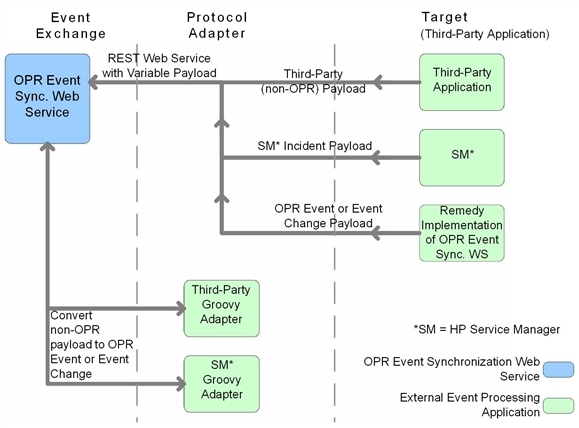
When configuring forwarding types for connected servers, you must consider whether the target server should synchronize back any changes to OMi. If so, you must specify either the Synchronize forwarding type, or the Synchronize and Transfer Control forwarding type when configuring a forwarding rule.
You can configure a target connected server to support transfer of control. If Supports Synchronize and Transfer of Control is selected during the configuration of the target server, the server is available in the Event Browser context menu, enabling an operator to transfer control of the event to this target connected server. If transfer of control is not selected, then the target server does not appear in the context menu.
If it is expected that the target connected server should synchronize back any changes, the Event Synchronization Web Service is available to receive these changes. You can customize the payload of the web service using a Groovy script adapter, in the same way as you can when configuring event forwarding.
OMi additionally provides the following WS PUT method endpoints for use by external applications to synchronize back external event changes.
PUT. A PUT call is used to bulk update external events. The URL used by OMi to address the endpoint for bulk updating external events is:
https://gatewayhost/opr-gateway/rest/synchronization/event/
With a Groovy script configured for the Connected Server, the payload is defined by the Groovy script receiveChanges() method.
Without a Groovy script configured for the Connected Server, the payload must be an OprEventList object.
For details about how to use the Event Synchronization Web Service, see Event Synchronization Web Service interface.
Perform a URL launch of the Event Browser from an external application
Any operator who needs to drill down into the OMi user interface from an external application using a URL launch of the Event Browser must:
-
Be a valid OMi user.
-
Have the same user name set up in OMi as the user name of the operator logged on to the calling application and performing the call.
If Single Sign-On (SSO) authentication is configured, set up the operator in OMi with the same user name that is used by operator to log onto the calling application and to perform the URL call. (The password of the OMi operator can be empty or any string.) After successfully logging into the calling application, the operator can launch the Event Browser without further authentication.
If the calling application is not configured to use SSO authentication, set up the operator in OMi with the same user name that is used by the operator of the calling application and specify a valid password. The operator is required to enter user name and password when launching the Event Browser.
-
Have the permission
Events assigned to userincluding the required actions granted. You can optionally grant the permission to view events not assigned to the user.
Without this valid user name, or if a user does not have the required viewing rights, an attempt to perform a URL launch of the Event Browser from the calling application results in an empty browser window.
For details about how you would set up a URL launch of the Event Browser, see Specify a URL launch.