
 Words and Phrases




Task 2: Create a form for SLA effective dates
For this task, you will use Forms Designer to create the form controls that prompt the user to indicate the effective dates of the SLA. These form controls, together with the window title, prompt, buttons, and other choices you made in the wizard record, will be displayed to the end user as the screen shown below.
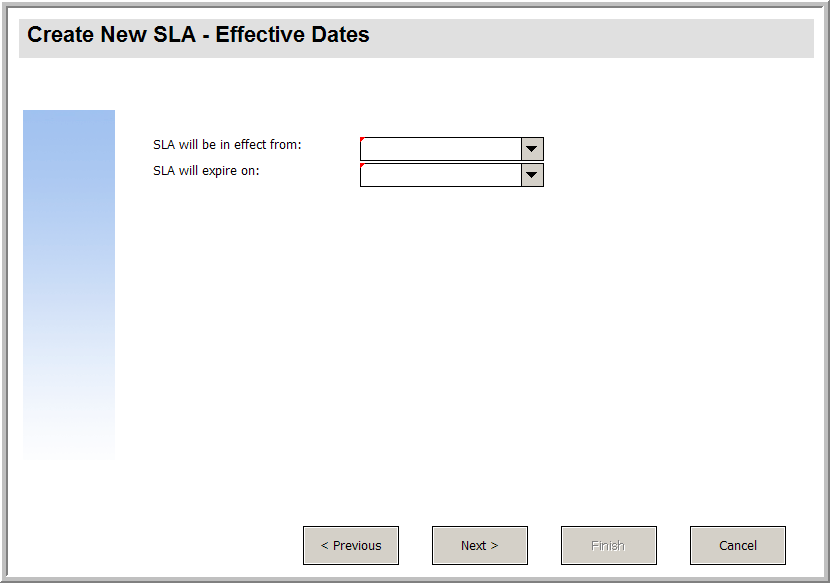
To create a new form for the SLA effective dates wizard, follow these steps:
- Start the Forms Designer.
-
In the Form field, type sla.create.validfromto.
Best Practice: Because the form name must match the subformat display entry exactly, you can copy the subformat display entry in the Usage tab and paste it into the Form field. This will help you to avoid spelling errors.
- Click New.
- Click No for Forms wizard.
-
Create the following for this form. When you start to design the new form, make sure the X and Y coordinates are at 0 (zero).
Property Value Label Caption Type:
SLA will be in effect from:
Visible Select.
Comfill Fill Button Visible Select.
Input start Mandatory Select.
Visible Select. Label Caption Type:
SLA will expire on:
Visible Select. Comfill Fill Button Visible Select.
Input Type:
expiration
Mandatory Select. Visible Select. - Click OK twice to save the new form and exit.
You have finished creating one of the forms needed for the SLA wizard.


